Posts

Showing posts with the label Pc tips and tricks

15 Essential Steps to Take if Your Computer Has Been Hacked: Protect Your Data Now ll BUFFOON SACHIN

Image
    BUFFOON SACHIN    In an era where our lives are increasingly digital, discovering that your computer has been hacked can be alarming. Immediate action is crucial to prevent further damage and protect your sensitive information. Here’s a straightforward guide on what to do if you suspect a breach. 1. Disconnect from the Internet and Secure Your Home Network Immediately disconnect your device from Wi-Fi or unplug it from the network to prevent further access. Additionally, change the password for your Wi-Fi network and ensure your router’s firmware is up to date to add an extra layer of protection against unauthorized access. 2. Change Your Passwords Use another device to change passwords for all your accounts, especially banking and email. Choose strong, unique passwords and enable two-factor authentication for added security. Consider using a password manager to help generate and store complex passwords securely. 3. Run a Security Scan Utilize reputable antivirus...

15 Signs Your Computer Has Been Hacked: How to Detect System Compromise ll BUFFOON SACHIN

Image
    BUFFOON SACHIN     In today’s digital age, keeping your devices secure is more important than ever. We store everything from personal photos to sensitive work documents on our computers and smartphones. But how can you tell if your system has been hacked or is being monitored? Here are fifteen easy-to-understand signs that could indicate a problem, along with simple steps you can take to protect yourself. 1. Unexpected Pop-Ups If you start seeing random pop-ups or ads when you’re not browsing the web, it might mean you have adware or malware. Run a quick scan with antivirus software to get rid of these pests. 2. Slow Performance If your device is suddenly running slower than usual—programs take longer to open or your computer freezes frequently—it could be a sign of malware using up your resources. 3. Unfamiliar Programs Check your list of installed programs regularly. If you spot software you don’t remember installing, it could be a sign that someone else has ac...

Create a Custom Voice Message for Windows Startup ll BUFFOON SACHIN

Image
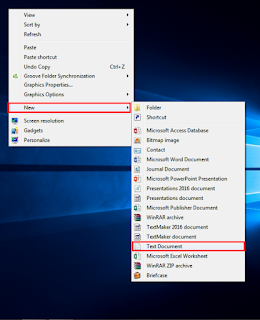
  BUFFOON SACHIN    Hello, friends! In this blog post, we'll guide you through the process of creating a custom voice message for your system's startup. This easy trick works on all versions of Windows. Just follow the simple steps outlined below: 1.Right click-new and select the Text document. 2.Now paste the below code without making any changes [Press Ctrl + v to paste] Dim speaks,speech speaks="Type your text here " Set speech=CreateObject("sapi.spvoice") speech.Speak speaks 3.You can type your custom text between the double inverted comma. 4.Now click on file and save as option. 5.Now give any name but use .vbs after the name for example [ welcome.vbs ] 6.In save as type option select All files 7.Click on save and save the file on desktop and double click on the f...

How to Find Your Computer's Birth Date ll BUFFOON SACHIN

Image
     BUFFOON SACHIN    Hello friends! Welcome to my new blog. In this post, I’ll show you how to find out the birth date (or age) of your PC without using any software. It’s a quick and easy process that you can complete in just a few steps. Follow the instructions below to learn how! 1.Press the windows key and type cmd find it and hit enter. 2.Type systeminfo and hit enter. Wait for few seconds after enter. 3.A lot of information will about your system find the biosversion . 4. The date displayed after the BIOS version is the birth date of your PC. I’ve hidden this information in my example, but it will be visible on your system. From this section, you can also gather additional information about your PC, such as the installed Windows version and the login server. Now you know how to find your PC's birth date and get more insi...

How to Set a Password on a Folder Without Using Software II BUFFOON SACHIN

Image
BUFFOON SACHIN Hello friends, welcome to my new blog. In this post, I will tell you how you can set a password on a folder without using any paid or free software, which will help you protect your data. For this, we are going to use WinRAR, which is pre-installed. If you don't have it, click here to download. This trick will work on all versions of Windows. Follow the steps below. 1.Right click on the folder on which you want to set password. 2.Select the (Add to archive) option. 3.Now in Advanced Tab select Set password..  4.A dialogue box will appear enter the password to lock the folder. [You can select the password range according to you .Password can be alphabets,number or the symbols] 5.Click Ok 6.Now  your folder will be converted as archive file with password. To unlock  just  type the correct password and open it. If you have any questions about setting a password on your folder, feel free to ask in the ...

How to Set a Custom Image as a Folder Icon ll BUFFOON SACHIN

Image
    BUFFOON SACHIN Hello, friends! In this blog post, you’ll learn how to transform a dull folder icon into a custom image of your choice. This not only enhances the look of your folders but also makes them easier to identify at a glance. The image which you want to set as folder icon it format should be jpg or png. First we have to change the image format to ico which is the format for icon. 1.Right click on  image which you want to set as folder icon then select the edit option. 2.As will you will select the image will open in paint now go top and select the resize option in home tab. Now deselect the main aspect ratio option in Resize by: Now select the Pixels option just next to percentage default percentage is selected change it to Pixels.  3.Now in Horizontal and vertical option write 100 and click ok. 4.Now go to file option and select save as and select the (Bmp picture)option. 5.Now you will see a dialog box to save in name give the image a name & after...

How to Create a Free Windows Hotspot Without Any Software ll BUFFOON SACHIN

Image
  BUFFOON SACHIN Hello, friends! In this blog post, I’ll show you how to create a hotspot on Windows without the need for any free or paid applications. We’ll be using Command Prompt (CMD) to set it up. Just follow the simple steps below: Note: For the code just type the text give in bold.If you receive some message from cmd then you have type the code correct. 1]Press the windows key and type cmd. Open CMD and type or copy/paste the below code & hit enter. netsh wlan set hostednetwork mode=allow ssid=name key=password  In ssid you have to type the name of your hotspot and in key type the password which you want to give. 2]Now you network is created and ready to host. To host it with other devices copy/paste or type the below code and hit enter. netsh wlan start hostednetwork Now your network is hosted you can use it with other devices with help of correct password. 3]Now to stop the sharing of hosted network or to turn off the hotspot copy/paste or type the below code and...

How to Take Screenshots on PC Without Software: Quick and Easy Methods ll BUFFOON SACHIN

Image
BUFFOON SACHIN   Hello friends! Welcome to a new and exciting trick. In this blog, I’ll show you how to take screenshots on all Windows versions without using any software. I’ll share two simple methods, and I’m sure one of them will work for you! 1 Snipping tool Snipping tool is available in all windows. You can use it to take screenshot. It very simple. Just open the page or site of which you want to take screenshot now follow the step given below. If you don't have then click here. 1.Press the windows  key from keyboard. 2.Now type Snipping tool and select the option with icon like scissors.    Here you will see three option select the new option to take screenshot. 3.Here you will see 4 option select the option according to your need. 4.Hold the left button and select the area  and release it after selection. Now you will see a new windows open of snipping tool from here you can save or edit it. Click save as option to save screenshot. 5.Now type the name ...