Posts

How to Recover Unsaved Microsoft Files (Word, Excel, PowerPoint) for Free ll BUFFOON SACHIN
Image
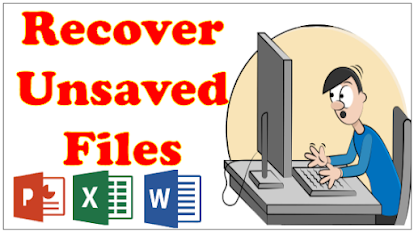
BUFFOON SACHIN In this blog, you’ll learn how to recover unsaved Microsoft files (Word, Excel, and PowerPoint) for free, without any software. This method works for all Windows and Microsoft Office versions. Follow these steps:   Now, let’s recover an unsaved Word file that was accidentally deleted. 1. Open the program (Word, Excel, or PowerPoint) from which you want to recover the files. 2.Click the File option on top left corner. 3.In Info tab click the Mange Versions option. 4.Select Recover Unsaved Documents in Manage Version menu. 5.A dialog box will appear; choose the file you want to recover. [Here, you will find your unsaved documents, and you can now edit and save them] 6. Edit your file and enjoy! If you have any doubts, feel free to leave a comment or email me at ( sachin2006mm@gmail.com ). You can also watch the video linked below. Thank YOU!!! ...

How to Add Languages to Your PC for Free ll BUFFOON SACHIN

Image
  BUFFOON SACHIN Hello friends welcome to my new blog in this you will know how you can add any language in your pc like Hindi , french and more for free , without using any external downloads,file,software. Just follow the steps given below.  1.Open the start menu and search  Region and language  click on the option. 2.Now go to   Keyboard and Languages. 3.Now select the Change keyboards option. 4. On the right side there click on the add  button. 5. You will see a list of languages displayed; choose any language according to your needs. 6. Click on Apply and then Ok . 7. Your taskbar will change, showing a dotted line on both the right and left sides.   8.  This line allows you to easily switch between the languages you added 9. Open any software or Notepad to test if it is working, and it should function perfectly. If you have any doubts, feel free to leave a comment or email me at ( sachin2006mm@gmail.com ). You can also watch the vi...

Essential Technology Acronyms and Their Full Forms Explained ll BUFFOON SACHIN

Image
  BUFFOON SACHIN Here, we’ll explore essential technology acronyms and their full forms. Whether you’re a tech enthusiast or just starting out, understanding these terms is key to navigating the tech world. From familiar terms like USB and CPU to concepts like IoT and API, this list will enhance your tech vocabulary and help you understand the devices we use every day. Let’s get started! 1.USB Universal Serial Bus  2.CPU Central Processing Unit 3.RAM Random Access Memory 4.ROM Read Only Memory 5.CD Compact Disc 6.DVD Digital Versatile Disc 7.LCD Liquid Crystal Display 8.LED Light Emitting Diode 9.SSD Solid State Drives 10.HDD Hard Disk Drive 11.Ctrl Control 12.Esc Escape 13.Email Electronic Mail 14.Gmail Google Mail 15.Lan Local Area Net...

The Complete Guide to Hackers: Types, Techniques, and Cybersecurity Tips ll BUFFOON SACHIN

Image
BUFFOON SACHIN (A) What is Hacker A hacker is an individual skilled in computer programming and networking who seeks to overcome technical challenges. While some hackers use their skills for ethical purposes, others gain unauthorized access to systems or networks to commit crimes, such as stealing personal data or financial information. (B).Types of hacker   1.White Hat Hacker Also known as Ethical Hacker. They are good hacker with a high skill knowledge .This type hacker who gains access to systems with a view to fix the identified weaknesses. They may also perform penetration Testing and vulnerability assessments.They protect the system or website from black hat hacker or attackers. White hat hacker are hired by bank and business in order to provide security. They are highly Paid for this work. 2.Gray Hat Hacker A hacker who is in between ethical and black hat hacke...

How to Find Your Computer's Birth Date ll BUFFOON SACHIN

Image
     BUFFOON SACHIN    Hello friends! Welcome to my new blog. In this post, I’ll show you how to find out the birth date (or age) of your PC without using any software. It’s a quick and easy process that you can complete in just a few steps. Follow the instructions below to learn how! 1.Press the windows key and type cmd find it and hit enter. 2.Type systeminfo and hit enter. Wait for few seconds after enter. 3.A lot of information will about your system find the biosversion . 4. The date displayed after the BIOS version is the birth date of your PC. I’ve hidden this information in my example, but it will be visible on your system. From this section, you can also gather additional information about your PC, such as the installed Windows version and the login server. Now you know how to find your PC's birth date and get more insi...

How to Set a Password on a Folder Without Using Software II BUFFOON SACHIN

Image
BUFFOON SACHIN Hello friends, welcome to my new blog. In this post, I will tell you how you can set a password on a folder without using any paid or free software, which will help you protect your data. For this, we are going to use WinRAR, which is pre-installed. If you don't have it, click here to download. This trick will work on all versions of Windows. Follow the steps below. 1.Right click on the folder on which you want to set password. 2.Select the (Add to archive) option. 3.Now in Advanced Tab select Set password..  4.A dialogue box will appear enter the password to lock the folder. [You can select the password range according to you .Password can be alphabets,number or the symbols] 5.Click Ok 6.Now  your folder will be converted as archive file with password. To unlock  just  type the correct password and open it. If you have any questions about setting a password on your folder, feel free to ask in the ...

How to Set a Custom Image as a Folder Icon ll BUFFOON SACHIN

Image
    BUFFOON SACHIN Hello, friends! In this blog post, you’ll learn how to transform a dull folder icon into a custom image of your choice. This not only enhances the look of your folders but also makes them easier to identify at a glance. The image which you want to set as folder icon it format should be jpg or png. First we have to change the image format to ico which is the format for icon. 1.Right click on  image which you want to set as folder icon then select the edit option. 2.As will you will select the image will open in paint now go top and select the resize option in home tab. Now deselect the main aspect ratio option in Resize by: Now select the Pixels option just next to percentage default percentage is selected change it to Pixels.  3.Now in Horizontal and vertical option write 100 and click ok. 4.Now go to file option and select save as and select the (Bmp picture)option. 5.Now you will see a dialog box to save in name give the image a name & after...

How to Create a Free Windows Hotspot Without Any Software ll BUFFOON SACHIN

Image
  BUFFOON SACHIN Hello, friends! In this blog post, I’ll show you how to create a hotspot on Windows without the need for any free or paid applications. We’ll be using Command Prompt (CMD) to set it up. Just follow the simple steps below: Note: For the code just type the text give in bold.If you receive some message from cmd then you have type the code correct. 1]Press the windows key and type cmd. Open CMD and type or copy/paste the below code & hit enter. netsh wlan set hostednetwork mode=allow ssid=name key=password  In ssid you have to type the name of your hotspot and in key type the password which you want to give. 2]Now you network is created and ready to host. To host it with other devices copy/paste or type the below code and hit enter. netsh wlan start hostednetwork Now your network is hosted you can use it with other devices with help of correct password. 3]Now to stop the sharing of hosted network or to turn off the hotspot copy/paste or type the below code and...

How to Take Screenshots on PC Without Software: Quick and Easy Methods ll BUFFOON SACHIN

Image
BUFFOON SACHIN   Hello friends! Welcome to a new and exciting trick. In this blog, I’ll show you how to take screenshots on all Windows versions without using any software. I’ll share two simple methods, and I’m sure one of them will work for you! 1 Snipping tool Snipping tool is available in all windows. You can use it to take screenshot. It very simple. Just open the page or site of which you want to take screenshot now follow the step given below. If you don't have then click here. 1.Press the windows  key from keyboard. 2.Now type Snipping tool and select the option with icon like scissors.    Here you will see three option select the new option to take screenshot. 3.Here you will see 4 option select the option according to your need. 4.Hold the left button and select the area  and release it after selection. Now you will see a new windows open of snipping tool from here you can save or edit it. Click save as option to save screenshot. 5.Now type the name ...